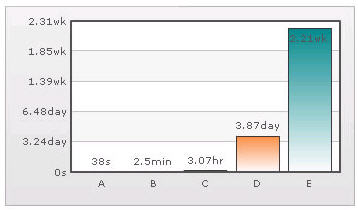
Putting Time in Scale If you want to plot time-related figures on the chart, you can set the time in each process to range from a few seconds to few days. You can build a scale indicating time and then specify it to the chart: • 60 seconds = 1 minute • 60 minute = 1 hr • 24 hrs = 1 day • 7 days = 1 week To convert this scale in qSIChartView 1 From Chart Attributes, click Edit. 2 Click Number Formatting. 3 In the Default Number Scale box, enter s. The default number scale is now represented in seconds. 4 In the Number Scale Value box, enter 60,60,24,7. 5 In the Number Scale Unit box, enter min,hr,day,wk. 6 Click Save. Whatever numeric figure was present on the left hand side of the table is put in Number Scale Value and whatever unit was present on the right side of the scale table has been put under Number Scale Unit - all separated by commas. If you want to set the chart formatting flags 1 From Chart Attributes, click Edit. 2 Click Number Formatting. 3 From Format Number, select True. 4 From Format Number Scale, select True. 5 Click Save. When you now view the chart, you'll see that all the data has been automatically scaled to the best value: • 38 is converted to 38s • 150 is converted to 2.50min • 11050 is converted to 3.07hr • 334345 is converted to 3.87 day • 1334345 is converted to 2.21wk Figure 28. Time scaling