qListForm : qListForm Pages : Behavior Page : Form

Form
The Form page contains the following elements:
 
Table 22. Form
See the Custom Action Help chapter on how to write a custom action to initialize the list form.
Form Component Behavior
This property is used to control the conditional behavior of the different components in the form, such as a field, a group of fields, or a tab. You can specify the following conditional behaviors: Show When, Hide When, Enabled When, Disabled When, Valid When, Invalid When, Required When, and Default When. See Table 24 for more information.
ValidWhen, InvalidWhen, and RequiredWhen are used with SharePoint List Item and Column validation. The validation is processed by:
1
2
This property is an XML string in this format:
The Form Component Behavior element can contain one or more Component elements. Each Component element controls the behavior of a specific component in the form like a field or tab/panel.
The Component element contains the following elements:
Table 23. Form Components
The Component element may contain any or none of the following conditional behavior elements:
These conditional behavior elements also work with any required field that is configured on the form.
For fields of type text, numeric or date/time, regular expression matching can be used for validation. Use the “Matching” operator in the conditional behavior element. You can also use the “Not Match” operator to apply the validation for input values that do not match the specified regular expression.
The following are some examples of how to use this property:
1
<FormComponentBehavior>
    <Component Type="Group" ID="ResolvedFieldsGroup">
        <ShowWhen>
            <Eq><FieldRef Name="Status"/><Value Type="Choice">Resolved</Value></Eq>
        </ShowWhen>
    </Component>
</FormComponentBehavior>
2
<FormComponentBehavior>
    <Component Type="Field" ID="Amount Paid">
        <EnabledWhen>
            <Eq><FieldRef Name="Invoice Status"/><Value Type="Choice">Paid</Value></Eq>
        </EnabledWhen>
    </Component>
</FormComponentBehavior>
3
<FormComponentBehavior>
    <Component Type="Field" ID="Reason">
        <HideWhen>
            <Neq><FieldRef Name="Project Status"/><Value Type="Choice">Behind</Value></Neq>
        </HideWhen>
    </Component>
</FormComponentBehavior>
4
<FormComponentBehavior>
    <Component Type="Field" ID="Assigned To">
        <InvalidWhen Message="Assigned To Must be filled if Status is In Process">
            <And>
                <IsNull>
                    <FieldRef Name="AssignedTo" />
                </IsNull>
                <Eq>
                    <FieldRef Name="Status" />
                    <Value Type="Choice">In Progress</Value>
                </Eq>
            </And>
        </InvalidWhen>
    </Component>
</FormComponentBehavior>
5
<FormComponentBehavior>
    <Component Type="Field" ID="% Complete">
        <ValidWhen Message="% Complete must be between 0 and 100">
            <And>
                <Geq>                    
<FieldRef Name="PercentComplete" />
                    <Value Type="Number">0</Value>
                </Geq>
                <Leq>
                    <FieldRef Name="PercentComplete" />
                    <Value Type="Number">1</Value>
                </Leq>
            </And>
        </ValidWhen>
    </Component>
</FormComponentBehavior>
6
<FormComponentBehavior>
    <Component Type="Container" ID="Initiation">
        <DefaultWhen>
            <Neq><FieldRef Name="Project Status"/><Value Type="Choice">In-progress</Value></Neq>
        </DefaultWhen>
    </Component>
</FormComponentBehavior>
Dependent Lists
This property identifies the child lists to be updated when the List Form saves the changes to the current list item.
This property works in conjunction with the Form Type property. When the Form Type property is set to EditListItem or EditDocument, the List Form will update the values in the child lists. When the Form Type property is set to NewListItem or UploadDocument, the List Form will create a new record in the child lists. This is useful when you have two lists with a one-to-one relationship.
This property also prevents the deletion of the current item if there are any child records in the specified lists. The user can delete a record when the Form Type property is set to DisplayListItem or EditListItem.
The Lists element can contain multiple List elements. One List element represents one child list. These are the attributes of the List element:
Table 25. Dependent Lists
The List element can contain zero or more Field elements. One Field element represents a field in the child list that needs to be updated. These are the attributes of the Tasks list:
Source The name of the field in the parent list where the value comes from. The name is case sensitive.
Target The name of the field in the child list where the value is copied to when the parent record is saved. The name is case sensitive.
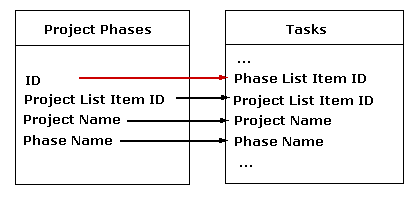
The following diagram illustrates parent child relationship between two different lists
Figure 2. Parent/Child Relationship between two lists
The Project Phases list is the parent list of the Tasks list. The ID field is the primary key in the Project Phases list because the value of the ID field is guaranteed to be unique (every SharePoint list and library contains a field called ID. This field cannot be modified and its value is uniquely auto-generated by SharePoint). The Phase List Item ID is the foreign key in the Tasks list. We replicate the value of the Project List Item ID, Project Name and Phase Name into the fields with the same name in the Tasks list.
For example, if the List Form is configured to edit an item in the Project Phases list, then every time we modify the information in the Project Phase list we need to make sure the values that are replicated and the Tasks lists are modified. The following is how the Dependent List property should be setup:
<Lists>
   <List SiteUrl="." ListName="Tasks" KeyFieldName="Phase List Item ID">
      <Field SourceFieldName="Project List Item ID"TargetFieldName="Project List Item ID"/>
      <Field SourceFieldName="Project Name"TargetFieldName="Project Name"/>
      <Field SourceFieldName="Phase Name"TargetFieldName="Phase Name"/>
   </List>
</Lists>