qListForm : qListForm Pages : Content Page : Primary Content

Primary Content
The Primary Content page is default category. You need to configure one or more elements in this page to get started using this web part.
Primary Content contains the following:
 
Form Layout
This property enables you to define the layout of the fields in the List Form. If this property is not defined, the List Form will display the fields in two column format: the first column is the field title and the second column is the control for the field.
This property is related to the Display Fields property. The Form Layout property defines the layout type and the containers. In order to place a certain field in a specific container, you will use the Tab/Panel/Container ID attribute of the Field element in the Display Fields property.
The Form Layout element can contain zero or more Container elements. You may not have to define any container for a certain type of layout manager. Some custom layout manager may have a fixed set of containers that do not need to be defined.
The Form Layout section contains the following:
 
Table 3. Form Layout
Custom Layout
The Custom Layout capability enables you to write your own Layout Manager for the qListForm or qSIListForm.
This document explains the programming interface for writing the custom Layout Manager and how to deploy your custom Layout Manager into the server.
Layout Manager
A Layout Manager is a part of the list form that determines the layout of the controls on the form. The type of the layout for your form is specified in the Form Layout property. Out of the box, the list form provides two layout managers:
 
You can create your own Layout Manager:
Figure 1. Creating a custom control
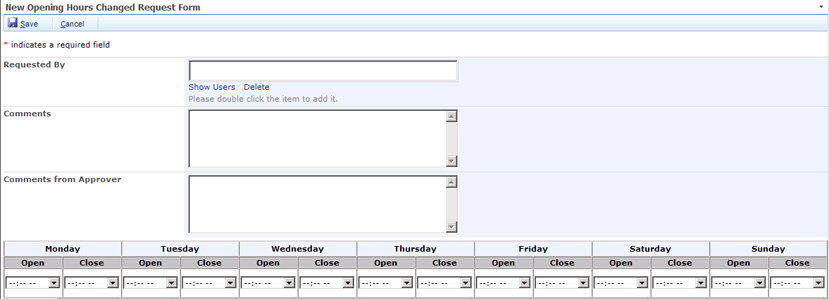
You can create your own custom Layout Manager class or use the sample custom Layout Manager class that is shipped with QuickApps for SharePoint.
To open the sample code
1
Select Start | All Programs | AgreeYa | QuickApps for SharePoint | Sample Code.
The Sample Code folder opens in Windows Explorer.
2
Double-click SampleCode.sln.
This opens the solution in Microsoft Visual Studio. The sample custom Layout Manager class can be found in SampleLayoutManager.cs file in the SampleCustomActionsAndCustomLayouts project.
Custom Layout Manager Class
If you want to write your own custom Layout Manager class, ensure the following:
Programming Interface
Your custom Layout Manager classes must be derived from WA.Core.LayoutManager.FormLayoutManager class. This class is located in WA.Core.DLL that is installed in the Global Assembly Cache (GAC) when you install the QuickApps for SharePoint.
Properties
The following are the properties of the WA.Core.LayoutManager.FormLayoutManager class:
 
Methods
The following are the methods of the WA.Core.LayoutManager.FormLayoutManager class.
 
isFieldRequired – a boolean flag to indicate whether or not this is required field. You may want to put some visual indicator for required fields such as a ‘*’ in the field title.
isControlHidden – a boolean field to indicate whether or not the control for the field should be hidden. The user can mark a certain field as a hidden field in the Display Fields property. If a field is hidden, you still have to add the control into the control hierarchy but you need to hide it in a certain way. For example, you can set the style’s Display attribute to None.
Debugging
In order to debug the code, generate the debug version of the DLL and copy the DLL and PDB file into the bin folder under the root folder of your SharePoint application. If you cannot find the bin folder, you can create one. Sign your assembly with a strong name key file.
 
Physical Path
To find the physical path of the root folder of your SharePoint application
1
Select Start | Control Panel | Administrative Tools | Internet Information Services (IIS) Manager.
2
3
Expand the Web Sites folder.
4
5
6
Select Home Directory tab.
The value in the Local path tells you the physical path of your root folder.
Trust Level
Once you generate the debug version, you should change the trust level for your web application to Full while debugging the custom Layout Manager class. The trust level is specified in the web.config. Find the trust element in your web.config and change the level to Full.
<trust level="Full" originUrl="" />
Using the Custom Layout Manager Class
In order to use your custom Layout Manager class, you should refer to it in the Form Layout property of the qListForm or qSIListForm as follows:
<FormLayout Type="CustomLayout" LayoutManagerClassName="Fully qualified class name of the custom Layout Manager" />
 
For example, in order to use the SampleLayoutManager class that comes in the sample code, specify the following in the Form Layout property:
<FormLayout Type="CustomLayout" LayoutManagerClassName="MyCompany.DevStudio.SampleLayoutManager, MyCompany.DevStudio, Version=1.0.0.0, Culture=neutral, PublicKeyToken=451cac61f7ec4225" />
Constructing the XML
To use the Form Layout property editor to construct the XML
1
2
3
Select Web Part Menu | Configure from the SI List Form.
4
Click Edit on the Form Layout property.
5
Select CustomLayout in the Form Layout Type drop-down menu.
6
7
Debugging the Code
To debug the code in your custom Layout Manager class
1
2
3
Select Debug | Attach to Process.
4
Select w3wp.exe in the process list.
If w3wp.exe is not listed, make sure that you check Show processes in all sessions. You may see more than one w3wp.exe listed. If you do, select the one with your user name or try it one by one until you find the process that contains the executable for your code.
5
Click Attach.
6
7
Deploying the Custom Layout Manager Class
When it is ready to deploy the solution, build your custom action project in release mode. Sign the assembly with a strong name key file. This ensures the assembly created can be deployed into Global Assembly Cache (GAC).You can deploy your assembly into the GAC by using the gacutil.exe that comes with the .NET Framework SDK. Here is the command: gacutil /i <DLLName>.
Once the assembly is dropped into the GAC, your class is ready to use.
Display Fields
This property defines what fields should be displayed in the List Form and how the fields are populated.
When you select the Edit button, a dialog box opens with a list of field names based on the list you have selected. You can enter a title and description for each field name.
You can add more details to the field names.
Fixed Value
You can assign a fixed value to a field using the FixedValue attribute.
For example, to assign Accounting to the Department field:
<Field Name="Department" FixedValue="Accounting"/>
Additionally, you can use special variables for the FixedValue attribute.
<CurrentUserID/> this value is replaced by the ID of the currently logged in user. If you want to assign the current user to the People and Group field, use this variable. If you are using Advanced Mode and you would like to assign a task to the currently logged in user, you can specify the following Field element: <Field Name="Assigned To" FixedValue="&lt;CurrentUserID/&gt;" /> (If you are using Advanced Mode)
<CurrentUserName/> this value is replaced by the name of the currently logged in user.
<CurrentUserEmail/> this value is replaced by the email of the currently logged in user.
<CurrentLoginName/> this value is replaced by the login name of the currently logged in user. The login name is usually in the form of domain\username.
<Today/> this value is replaced by today's date.
<Now/> this value is replaced by the current date and time.
You can edit the following:
Table 8. Fixed Value
Consume Value from an HTTP Parameter
The HTTP Parameter Consumer field gets its value from an HTTP parameter. This is the attribute to create an HTTP Parameter Consumer field:
 
Calculated Format
You can format a value of a field using values from other fields by using the CalculatedFormat attribute. The value of the another field can be referred to using the <%fieldName%> field replacement expression. If you are using Advanced Mode, you must use the encoded form of the < and > characters, which are &lt; and &gt;, respectively unless you type in the value in the Display Fields editor in the List Form Editor, where the Editor will encode the characters automatically for you.
For example, if you want to format the Full Name field as Last Name, First Name, the Field element should be specified as:
<Field Name="Full Name" CalculatedFormat="&lt;%Last Name%&gt;, &lt;%First Name%&gt;" />
Another example is to assign a ten-digit number to the AccountNumber field using the ID of the list item. If the ID is less than 10 digits, it is padded with zeros.
<Field Name="AccountNumber" CalculatedFormat="&lt;%{0:0000000000}
ID%&gt;"/>
This attribute can also be used to make a field read-only. For example, to make the AccountNumber a read-only field:
<Field Name="AccountNumber" CalculatedFormat="&lt;%AccountNumber%&gt;" />
Autofill with a lookup/cross-site lookup field
The Auto Fill field gets its value from the parent field. The parent field must be a lookup field or a cross-site lookup field.
The following are the attributes to create an auto-fill field:
For example, a List Form is used to edit the Employee list. Manager is a field in the Employee list, and it is a lookup field. Two other fields, ManagerFirstName and ManagerLastName, are filled based on the row selected in the Manager field. The Fields element for the Manager, ManagerFirstName,and ManagerLastName will look like the following:
<DisplayFields>
   <Fields ContentType="Employee">
      <Field Name="Manager" AutoPostBack="true"/>
      <Field Name="ManagerFirstName" ParentField="Manager" AutoFillDisplayFieldName="FirstName"/>
      <Field Name="ManagerLastName" ParentField="Manager" AutoFillDisplayFieldName="LastName"/>
   </Fields>
</DisplayFields>
Set the AutoPostBack attribute to true in the parent field. Otherwise, the ManagerFirstName and the ManagerLastName fields will not be refreshed when the user selects another manager.
 
Consume value from a row provided by another web part
The row consumer field gets its value from the row that is consumed by this List Form. To create a row consumer field, you must connect the List Form with another web part that implements the IRowProvider interface (such as the qSelector or qMultiSelectors).
These are the attributes to create a row consumer field:
For example, a List Form is used to edit a Tasks list. The Tasks list contains a Project Name field, and this field is configured as a row consumer field. The row is provided by a qSelector web part that displays the list of projects from the Projects list and is connected to the List Form.
<DisplayFields>
   <Fields ContentType="Task">
      <Field Name="ProjectName" ConsumeRowDisplayFieldName="Name"/>
   </Fields>
</DisplayFields>
Consume value from a session
Session consumer field gets its value from a row that is stored in the session object. The concept is similar to Row Consumer Field Attributes. However, if you need to get values from multiple providers, you must use the Session Consumer Field instead of Row Consumer Field because the List Form can only be connected to one row provider.
To create a session consumer field, you must first declare a Sessions element. A Sessions element can contain one or more Session elements. The Sessions element contains the information about the list where the row stored in the session comes from. After the Sessions element is defined, you can use it in the Field element. The XML for the session consumer field looks like the following:
<DisplayFields>
   <Sessions>
       <Session Name="sessionName" SiteUrl="siteUrl" ListName="listName"/>
   </Sessions>
   <Fields ContentType="contentType1">
      <Field Name="field Name" ConsumeSessionName="sessionName" ConsumeSessionDisplayFieldName="displayFieldName"/>
   </Fields>
</DisplayFields>
These are the attributes to create a row consumer field:
You can replace the Consume Session Display Field Name attribute with Consume Session Display Format if you want to use multiple fields as the source of values for this field.
For example, a List Form is used to edit a Tasks list. The Tasks list contains a Project Name field, and this field is configured as a session consumer field. The row is provided by a qSelector web part in another page that is visited before this page is opened.
<DisplayFields>
   <Sessions>
      <Session Name="ProjectsSession" SiteUrl="../../.." ListName="Projects" />
   </Sessions>
   <Fields ContentType="Task">
      <Field Name="ProjectName" ConsumeSessionName="ProjectsSession" ConsumeSessionDisplayFieldName="Name"/>
   </Fields>
</DisplayFields>
Lookup Field
You can sort and filter the entries for the Lookup fields by using the Sort Field and CAML Filter attributes, respectively. These attributes are ignored if the field is not a lookup field.
For example, if you are using Advanced Mode and you want to sort the Related Task lookup field by its title and only want to show high priority tasks, you can specify the following configuration:
<Field Name="Related Task" SortField="Title" CamlFilter="&lt;Eq&gt;&#xD;&#xA; &lt;FieldRef Name=&quot;Priority&quot; /&gt;&#xD;&#xA; &lt;Value Type=&quot;Choice&quot;&gt;(1) High&lt;/Value&gt;&#xD;&#xA;&lt;/Eq&gt;" />
Cross-site Lookup
Cross-site lookup is the capability of the List Form to refer to multiple lists in different sites.
To use this feature, create a single-line-of-text field, not a lookup field. Internally, the List Form will store the field value in this format: siteUrl;#listName;#listItemId.
For example, add a Document Type field to the metadata of every document that you store in the document library. One way of doing this is to make this field a choice field. However, if you need to change the options for the Document Type, you have to go to every document library in every site to change it. The same problem occurs if you make the Document Type field a SharePoint lookup field (because SharePoint can look up a list in the same site). The solution is to make the Document Type field a cross-site lookup field. You can create a Document Type list in a centralized place and create a DocumentType field (as single line of text field) in every document library. Configure this field as:
<Field Name="DocumentType" DisplayFieldName="Type" SortField="Type" AutoPostBack="true">
   <List SiteUrl="../../.." SiteName="Dashboard" ListName="DocumentType" />
</Field>
The Display Field Name attribute can be replaced with Display Format attribute if you want to display multiple fields in the drop-down menu. The value of the Display Format attribute is in the same format as that of the Calculated Format attribute.
The above configuration assumes the following conditions:
You can specify more than one List element inside the Field element. If you do, the List Form will display two dropdowns. The first drop-down menu selects the list and the second drop-down menu selects the items in the list. This function makes the Site Name important because the first drop-down menu displays the list as List Name in SiteName.
System Integration
System Integration (SI) field gets its values from a data column accessible through the System Integration Framework the same mechanism used by SI Web Parts to connect to external data sources.
In order to use the SI Field, the qListForm should be added to a web part page which belongs to a SharePoint site that has System Integration configuration defined. It also requires that the Catalog property be defined prior to specifying the SI Field.
The required attributes for a field of this type:
Complex Category
The Complex Category field allows the SharePoint discussion view webpart to function like the Lotus Notes response document which contains a category attribute. Categories that allow multiple values are not supported.
The attributes for a field of this type: