qChartView : qChartView Pages : Appearance Page : Chart

Chart
The Chart Page allows you to define characteristics of your charts.
Chart Appearance contains the following elements
 
Chart Attributes
Advanced Mode
Turn on Advanced Mode if you want to edit Chart Attributes in XML format.
Title and Axis Name
The Chart View allows you to add a caption, sub-caption, x-axis title, and y-axis title for your charts. You can configure the font properties for each of them individually or collectively. You can also apply styles and animation effects to them.
 
Table 17. Title and Axis
Border and Background
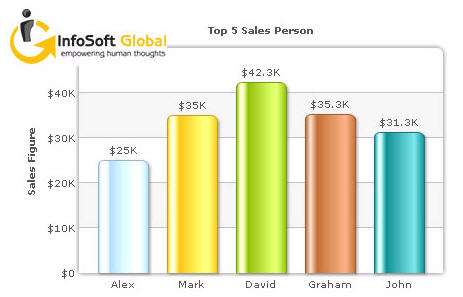
Background refers to the entire background of the chart.
You can also have a border around the chart. By default, the border is on in 2D charts and off in 3D Charts.
Shown below is a chart with a border around the chart.
Figure 2. Border around chart
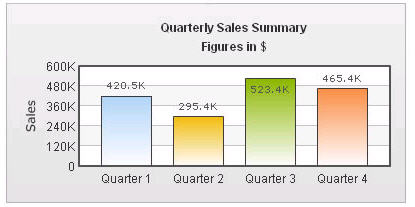
 
Chart Canvas
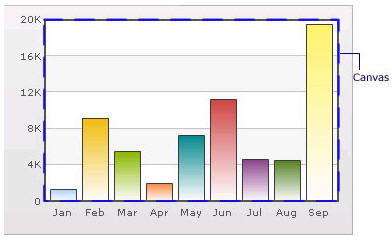
Canvas refers to the area in which the chart is plotted.
Figure 3. Canvas
 
Table 19. Canvas
Data Plot
Plot refers to the column, lines in a column, line chart respectively.
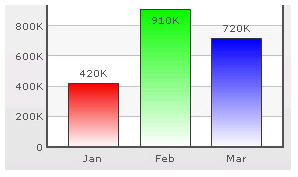
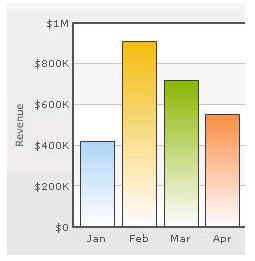
For all the charts, you can specify custom color for each data plot using the color attribute of <set /> element. The color must be in hex code format (RRGGBB) without #.
<chart ....>
    <set label='Jan' value='420000' color='FF0000'/>
    <set label='Feb' value='910000' color='00FF00'/>
    <set label='Mar' value='720000' color='0000FF'/>
    ....
</chart>
Figure 4. Data Plot
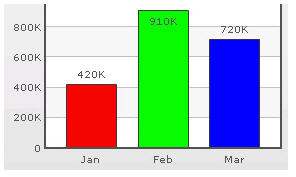
By default, most charts have FFFFFF as the plot gradient color. If you wish to use solid fills for the column (or area), use the Plot Gradient Color attribute without any color defined for it, that is, plotGradientColor=''
<chart plotGradientColor='' ....>
    <set label='Jan' value='420000' color='FF0000'/>
    <set label='Feb' value='910000' color='00FF00'/>
    <set label='Mar' value='720000' color='0000FF'/>
    ....
</chart>
Figure 5. Data Plot with solid fills
 
 
Table 20. Data Plot
Data Labels
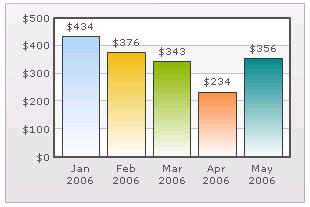
Data labels refer to the names for the data points that appear on the x-axis.
Figure 6. Data Labels
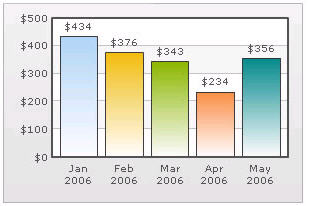
In the chart shown above, the dates are the data labels for the chart. By default, they get wrapped when there is not enough space on the chart.
 
Table 21. Data Labels
Data Values
Data values refer to the plot values such as line, column, and bar displayed beside it.
Figure 7. Data Values
In the chart shown above, the dollar values appearing above the column are the data values.
 
Table 22. Data Values
External Logo
You can load external logos at run-time to be displayed over the chart. The logos can be GIF/JPEG/PNG or SWF files that reside on the same sub-domain as the chart SWF.
Figure 8. External Logo
 
Table 23. External Logo
Font Properties
You can specify generic font properties for all the text on the chart using the attributes given below.
 
Table 24. Font Properties
Chart Palettes
qChartView offers 5 palettes. The palette theme configures colors of the following:
The internal palette does not cover the color of the data items. To change the color of the data items, use the Palette Colors attribute or Series Appearance property.
 
Table 25. Chart Palettes
Y Axis
Chart limits are the minimum and maximum y-axis values. qChartView automatically calculates the best chart limits when you do not specify them explicitly.
.
 
Table 26. Y Axix
Division Lines
Divisional lines are horizontal lines running through the canvas. They break up the y axis into smaller units helping in better visual data interpretation.
Figure 9. Division Lines
 
 
Table 27. Division Lines
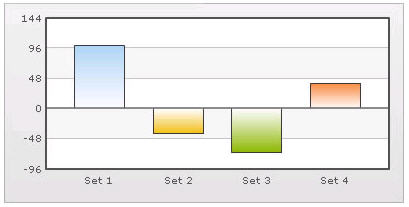
Zero Plane
Zero plane is a plane which separates the positive and negative numbers on a chart having both of them.
Figure 10. Zero Plane
 
 
Table 28. Zero Plane
Anchors
Each data point in a line or area chart is represented by an anchor. The anchors help identify the data point better in the chart. They also show a tool tip showing the data point details when the mouse is hovered over them, and can be linked to other pages as well.
Figure 11. Anchors
 
Table 29. Anchors
Tool Tip
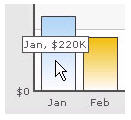
A tool tip is shown when the mouse is hovered over a particular data point. It shows the following information:
Figure 12. Tool Tip
 
 
Table 30. Tool Tip
Paddings and Margins
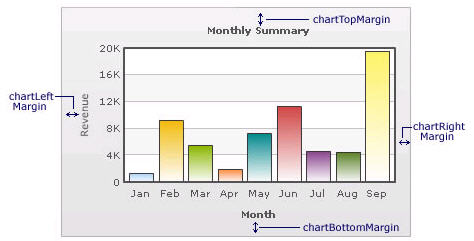
qChartView lets you define various paddings and margins using pixels. These attributes are listed one-by-one below.
By default, qChartView provides some padding between the chart border and the canvas. This is called the chart margin and each margin can be set individually.
Figure 13. Paddings and Margins
 
Smart Labels and Lines
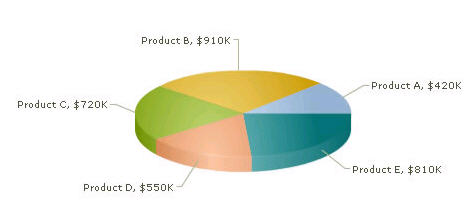
Smart labels are the labels for the pie/doughnut chart. The smart labels prevent overlapping of labels even when large number of labels are placed in close vicinity.
Figure 14. Smart Labels and Lines
 
Legend
In multi-series/combination charts, the series name of each dataset shows up in the legend of the chart. This helps you relate a data plot to its series name using its color. A dynamically generated series will be prefixed in the legend with the series name if a series name has been configured. The legend does not appear for single-series charts because there is only one series in the chart.
Figure 15. Legend
The legend below the chart helps identify the series name.
 
Table 33. Legend
Number Formatting
qChartView offers you a lot of options to format your numbers on the chart from number prefixes and suffixes to controlling the decimal places to scaling your numbers based on a pre-defined scale.
.
 
3D Chart Attributes
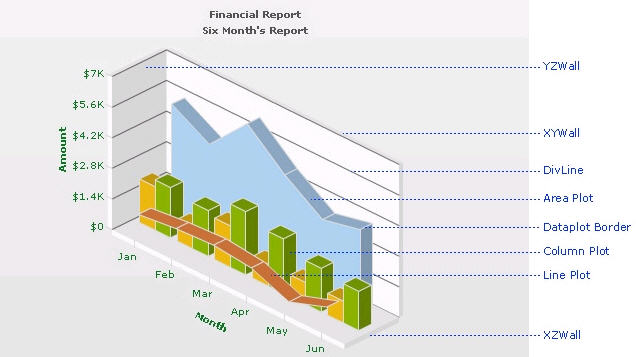
The 3D Combination chart is a true 3D chart which offers features such as viewing from a specific camera angle, definition of light source, use of dynamic lighting, and rotation.
The various elements of a 3D Combination chart are shown below:
Figure 16. 3D Charts
 
 
Table 35. 3D Charts
Custom About Menu Item
You can change the default "About QuickApps for SharePoint" context menu item to show your label and link it to your own URL using the below attributes.
 
Functional
These attributes let you control a variety of functional elements on the chart.
 
Table 37. Functional
Trend Lines
Trend Lines allow you to specify the horizontal/vertical lines spanning the chart canvas which aid in interpretation of data with respect to some pre-determined value.
Trend Lines contain the following:
 
Table 38. Trend Lines
Styles
Styles help you apply font, effects and animations to various objects of the chart. Styles lends a simple mechanism using which you can easily control the visual layout of charts.
Styles allows you to:
Each object on the chart has been assigned a unique name, for direct association with style definitions. For example, the background of the chart is termed as BACKGROUND. Similarly, the plot (columns, lines, areas) on the chart is named as DATAPLOT. This enables you to associate each style to multiple chart objects or associate multiple chart objects to a particular style.
You can find the list of objects for each chart in individual Chart XML Sheet.
You can define one or more styles for a chart from the Styles Editor. To add a style, click Add. To see more attributes for a particular style, click Edit for the style. To delete a style, select the check box of the style and click Delete.
Styles contains the following:
 
Table 39. Styles
Custom defined styles to chart objects
To apply your defined styles to chart objects, make sure that you have the list of chart objects present in each chart.
For example, the following chart objects are for 2D Single Series Column Chart:
 
The following XML does the work of applying styles to different chart objects:
<application>
    <apply toObject='Caption' styles='MyFirstFontStyle,MyFirstShadow' />
    <apply toObject='Canvas' styles='MyFirstAnimationStyle' />
    <apply toObject='DataPlot' styles='MyFirstShadow' />
</application>
Each <apply> element helps to apply multiple styles to one chart object; for example, in our code, we first apply the MyFirstFontStyle font style to Caption of the chart and then apply the shadow style MyFirstShadow to the same object.
If you are using multiple styles, ensure:
for example, <apply toObject='Caption' styles='MyFirstFontStyle,MyFirstShadow' />
for example,
<apply toObject='Caption' styles='MyFirstShadow' />
<apply toObject='DataPlot' styles='MyFirstShadow' />
You CANNOT separate the object list by comma and then assign a single style to it - the following is INVALID:
<apply toObject='Caption,DataPlot' styles='MyFirstShadow' />
Series Appearance
This property enables you to specify the appearance of the data series and data items in the series.
The Appearance element can contain one or more Series Appearance elements. Each Series Appearance element controls the appearance of the data series in the chart. Therefore, the first Series Appearance element controls the appearance of the first data series, the second one contains the second data series, and so on. See the Configuration property on how to define multiple data series in the chart.
The Series Appearance contains the following:
 
The Series Appearance element can contain zero or more Item Appearance elements. If you do specify any Item Appearance element, every item in the series is displayed according to the settings in the Series Appearance element. The Item Appearance is applied as follows:
Item Appearance contains the following:
 
Table 42. Item Appearance
Organization Chart Properties
 
Organization Chart Node Color Appearance